How to use: getting data off a disc that will not read
Disc Rescue works in 3 steps. Checking the disc (step 1) can be done with the free "Disc Rescue Lite". Taking out and saving is done with the paid version: launch price JPY 980 (until January 15, 2027), planned regular price JPY 3,950 (tax included, one-time purchase).
It never writes to the original disc. You can stop at any step, at any time.
The screenshots on this page show the Japanese display of the app, which is also available in English. The app's screens are available in Japanese and English only.
What you need
- A PC with Windows 10 (version 1809 or later) or Windows 11
- A drive that can read CDs, DVDs and Blu-ray discs (built in, or connected by USB)
- The disc that will not read
- A place to put the data you take out (a drive with free space equal to the disc's size plus about 5%; if there is not enough, the screen shows how much is needed)
- Time. A damaged disc can take from several hours to several days
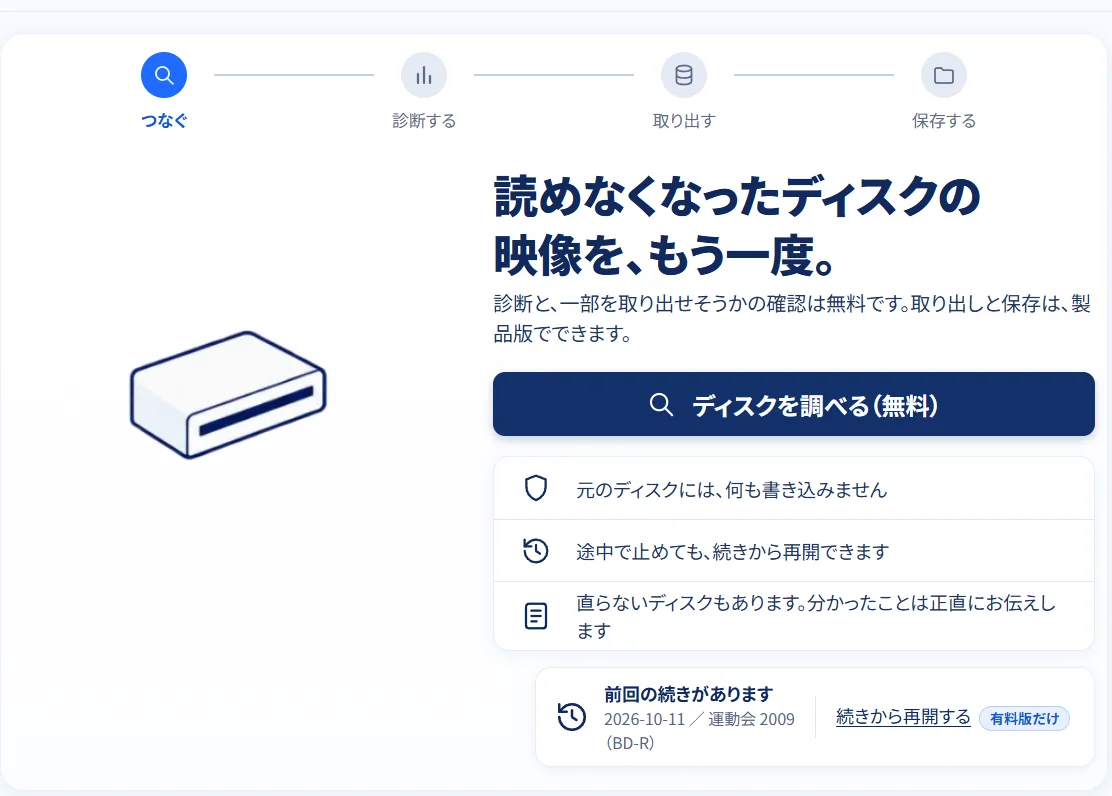
Step 1: Put the disc in and check it (free)
First, a single screen of notes appears before you start. Read it, then press the button that says you understand, and the check begins.
Text shown on the screen
This software only reads the disc. It does not write to it or erase it. However, because a damaged disc is read for many hours, sometimes for days, a weak disc may get worse and the drive may be put under strain. We cannot promise that your video will come back, and sometimes only part of it does. The tray may open and close by itself during reading, so keep your hands and objects away from it. You can stop at any time, and the results so far are kept.
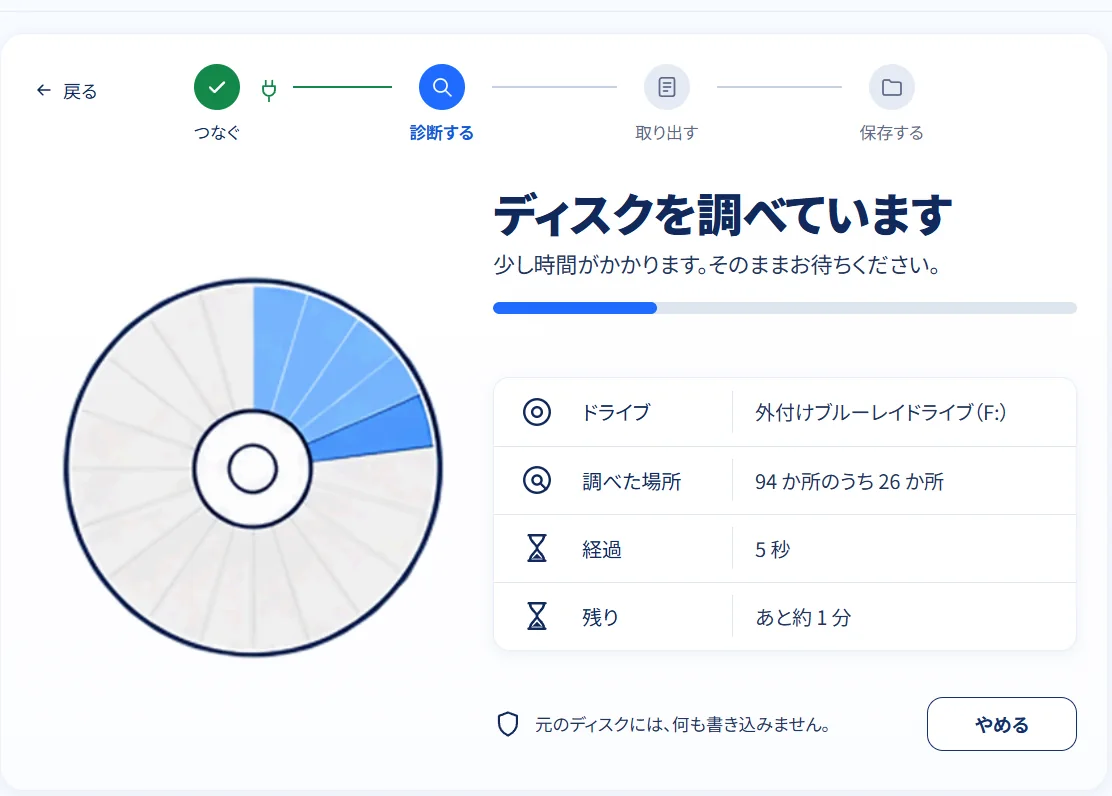
Once it starts, the app checks the type and condition of the disc, reads small samples from various places on it, and tells you roughly how much might come back, as a range of numbers.
Checking usually takes a few minutes up to about 30 minutes. It varies a lot with the condition of the disc.
If Windows asks "Do you want to format the disc?", do not press it.
If a message asks whether to format or initialize the disc, do not press it. The contents of the disc could be erased. This software never changes the contents of the disc.
Step 2: Take out what can be read (paid version)
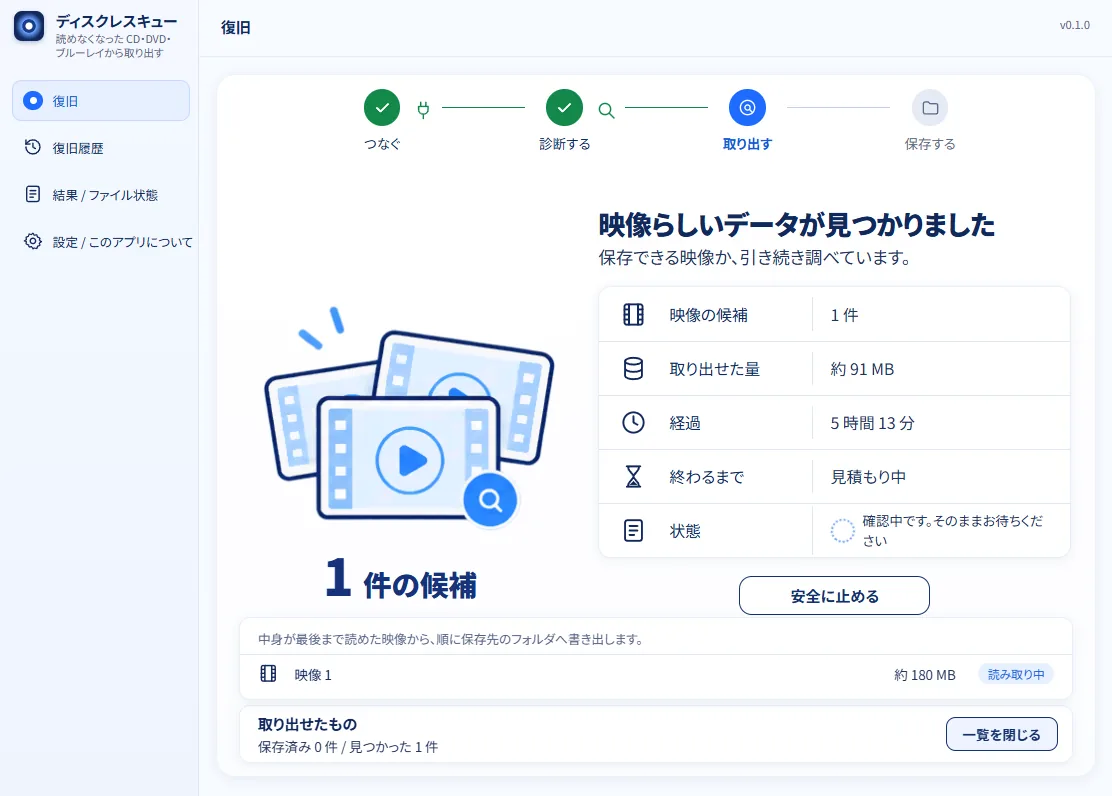
The app takes out videos you can watch, in order. They are added to a list one by one. It keeps going even if you are not watching.
- The list grows more slowly as time goes on. Reading the same place again and again may add less and less.
- You may decide to finish with what you have so far. What was taken out is kept.
- You can stop at any time. When you stop, the results so far are kept.
While reading, the app keeps your PC from going to sleep, and puts that back when reading ends. It does not rewrite your power settings themselves. If it could not keep the PC awake, it tells you on the screen and asks you to change your power settings so the PC does not sleep.
Step 3: Check it, then save
On the result screen, check four things: possible videos, the amount of data read, what was saved, and whether it plays. What was taken out appears in the list, one item at a time.
Text shown on the screen
Possible videos: this only means something looks like a video. It is separate from saving and from playing.
Plays: not checked yet
"Possible videos" is the number of pieces of data shaped like a video; it is not the number of videos you can watch. "Plays" becomes "checked" only for items that were really played and confirmed. The current version does not do this check, so it shows "not checked yet". After saving, please play the files yourself to make sure.
Even if not a single video could be taken out, nothing on the disc has changed. Please keep the disc. Before you buy, the free "Disc Rescue Lite" can tell you, at no cost, whether videos are found and whether the places it checked can be read. It cannot promise that the data can be taken out.
You buy before taking out. If you check with the free "Disc Rescue Lite" and it looks like data can be taken out, press the button to get the full version on the result screen. After you buy in the Microsoft Store, the full version can take out and save.
Even after you buy, how many videos can be taken out depends on the condition of the disc. Missing or unreadable parts do not come back. Price and refund terms are on the price page.
When only part of it came back
The result screen shows what share of the disc could be read. It also states, without hiding it, how much could not be read.
Text shown on the screen
About x% of the disc could be read. This is not the share that can be recovered.
Only a small part of the disc could be read. Nothing that can be saved as video is available right now. Going on may not add much.
The original disc has not been changed. Please keep it.
For CDs
The steps are the same as for DVDs and Blu-ray discs. The app checks and tells the disc types apart by itself.
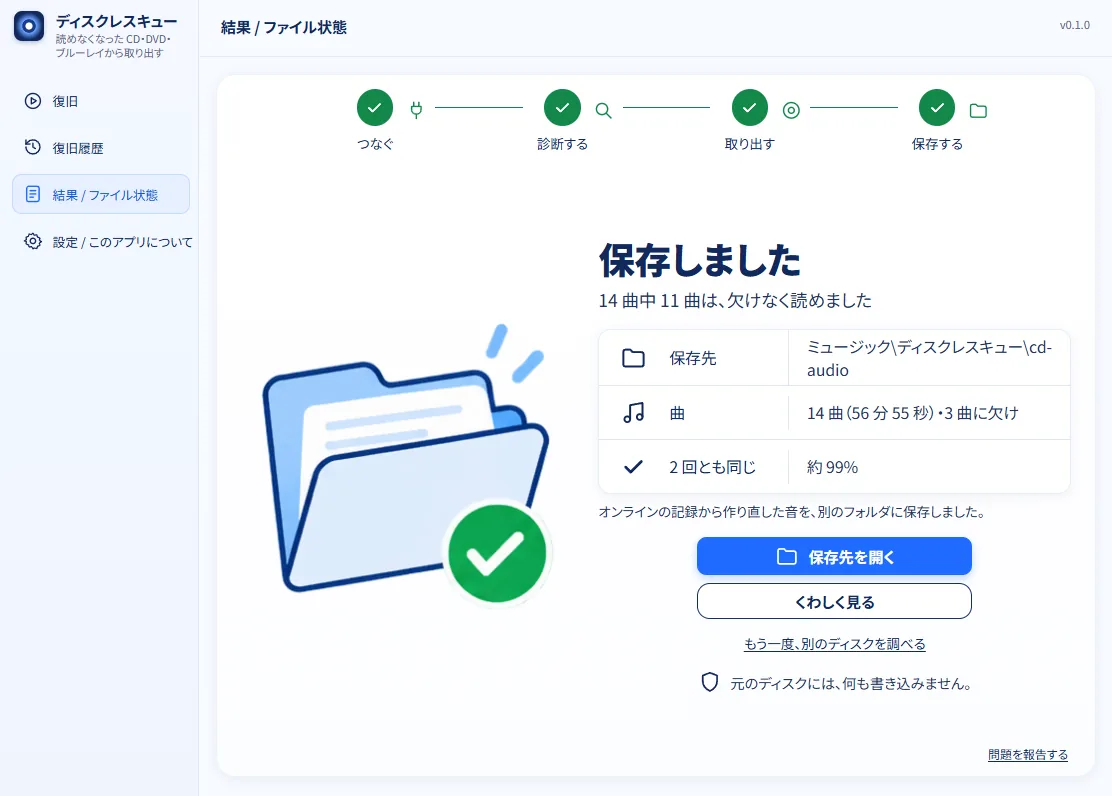
- Music CD: The app makes one audio file (WAV) per track, plus a record of where each track starts and ends. Scratched spots are read again and again, and a spot counts as "read" only after the same sound has been confirmed. Spots that could not be confirmed are left silent, and the list shows which track and roughly where.
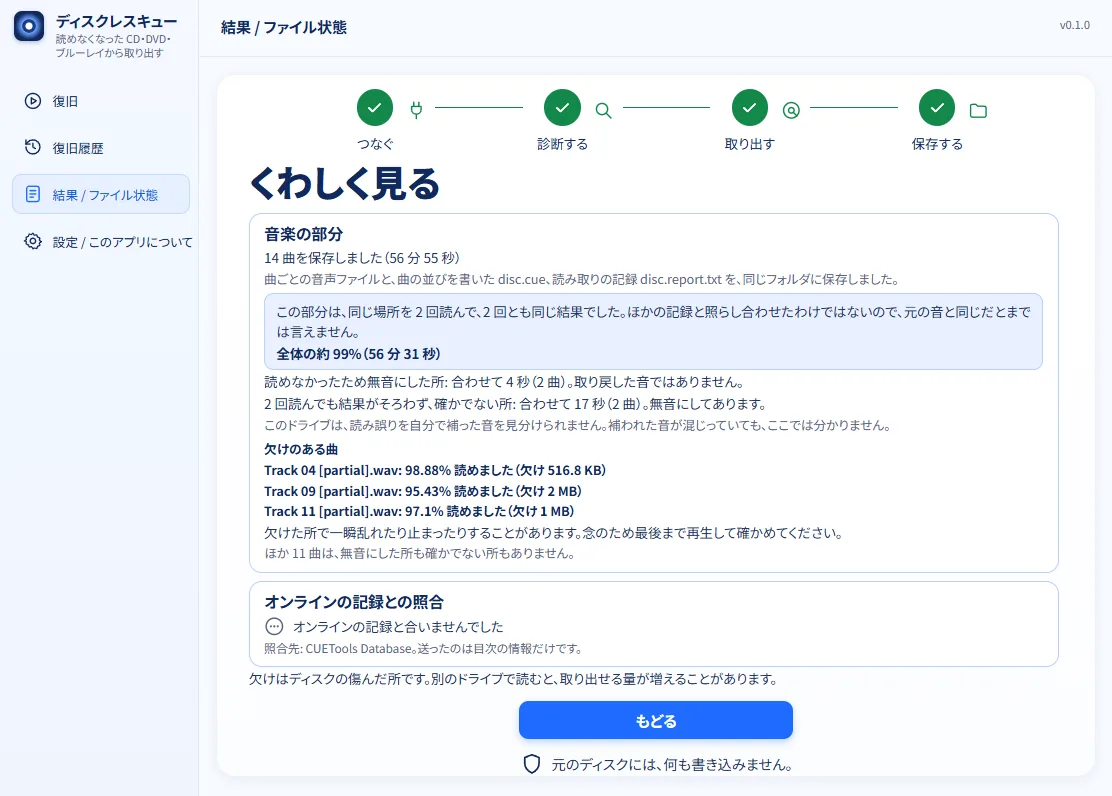
The per-track result screen. It lists where silenced spots are, by track. Screens may change between versions. The numbers are examples. - CDs with files (CD-ROM, CD-R): The app checks the contents for errors before counting them as read, then takes out the files in the parts that could be read. Parts that could not be read are shown in a list, not hidden. CD-R discs written in several sessions, and CD-R discs whose writing was never finished, are also supported.
- CDs with both: The music part and the file part are taken out in turn.
Even when a music CD reads successfully, we cannot say it matches the original sound. When the paid version saves a music CD, it sends a string of numbers like the disc's table of contents to an online public database (CUETools Database) to check whether the saved result matches the record. Even if it matches, we cannot say it is the same as the original sound. For a disc that is not in the database, or when the connection fails, it just shows "not compared", and your saved files can be used as they are. You can turn this comparison off in Settings. What is sent is described in the Privacy Policy.
Repair from the online record (paid version)
When the comparison finds a record, spots that scratches made unreadable may be repairable from that record. The app asks you before repairing. Only when you decide to repair does it fetch the data needed for the repair.
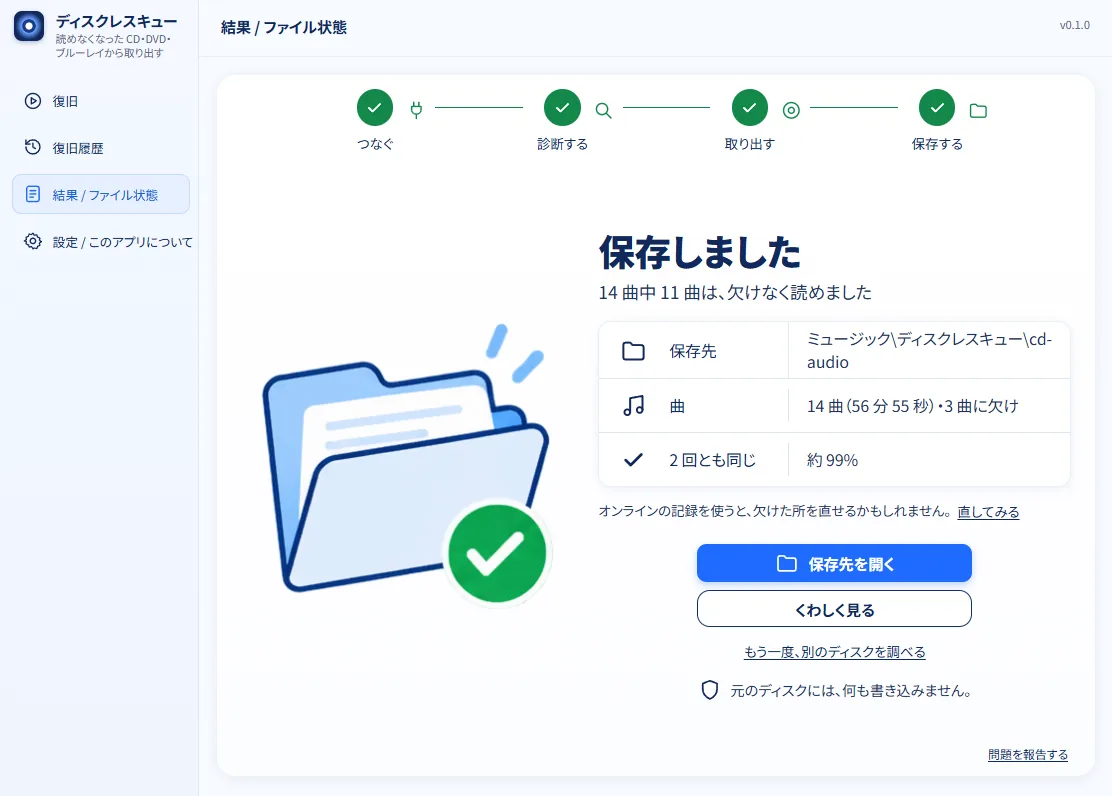
- The repaired result is saved as a separate file. The original disc and the data as it was read are not changed.
- Repaired spots are marked so you can see they were "rebuilt from the online record", and are kept apart from spots read from the disc.
- The repair is used only when the whole disc matches the record afterwards. If it does not match, nothing is changed and the app says it could not repair. A badly scratched disc may not be repairable.
- Even when the result matches the record, we cannot say it is the same as the original sound.
When the app finds a copy-controlled CD (CCCD), it explains that and stops. It has no function to remove copy protection.
Text shown when the free version checks a CD
The free version goes only as far as checking. Saving and comparing with the online record are done with the paid version.
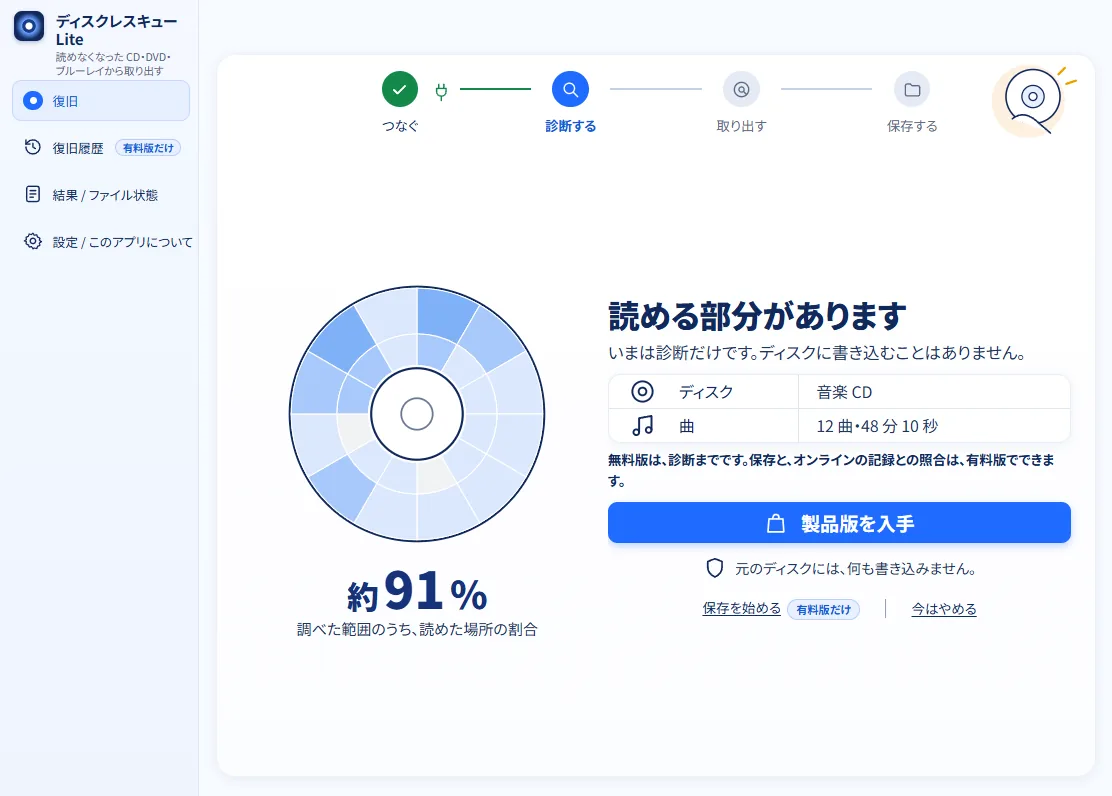
For CDs too, the free "Disc Rescue Lite" goes only as far as checking. It does not compare with the online record either.
Colors and wording
While the app checks, the disc picture is painted blue where checking is finished. Numbers appear with it, such as "26 of 94 places checked" (see the checking screen above).
In the detailed result table, the state of reading is shown with these five labels.
-
Confirmed
The range that was confirmed to have been read correctly to the end.
-
More can be tried
The range that may be readable again if conditions are changed.
-
No more automatic retries
The range that a normal resume does not retry by itself.
-
Not tried yet
The range that has not been tried yet.
-
Skipped
The range that was skipped on purpose, by policy.
Parts that could not be read are never filled with "0" and counted as taken out. "100%" appears only when everything has been confirmed.
During the check, you may also see messages like this one.
When a copy-protected recording is found
This disc seems to hold a copy-protected recording. The contents can be read, but this software cannot turn them into something that plays.
Many discs with TV programs recorded on them are copy-protected. Disc Rescue has no function to remove that protection.
If it stops partway
A power cut, a forced shutdown, closing the window, a wrong click, Ctrl+C: however it stopped, you can resume from where it left off the next time you start the app. What was already read is kept. The short stretch just before the stop (for example, when the power went out) may have to be read again.
This is the same for CDs, DVDs and Blu-ray discs. It also works when a long read stops at the time limit that was set.
- Open the app again. If a read was interrupted, the list of recent recoveries opens.
- The row of the interrupted read says that its progress was saved and that reading will continue from there.
- Press the button to resume from last time.
- Choose the drive letter (such as D) and insert the same disc as last time.
If you insert a different disc, the app refuses to continue so that two discs are never mixed. If it says this is a different disc, insert the disc that was read last time. If it says it cannot be confirmed right now, re-insert the disc and try again.
If you try to close the window during reading, the app asks whether to stop reading and close; your progress is saved. You may have to wait a moment until saving is finished.
To resume, do not delete the files in the destination or move them to another place.
When a disc does not read well
Depending on what happens (the drive cannot recognize the disc, it stopped reading partway, and so on), the app shows on the screen what to try next.
- Take the disc out and put it in again. Right after you insert it, the drive can take a little while to recognize it.
- Gently wipe the reading surface (the side without printing) with a soft cloth, in a straight line from the center to the edge. Do not wipe in circles.
- Try reading it in a different drive.
- If it still will not read, please consider asking a data recovery service that has special equipment.
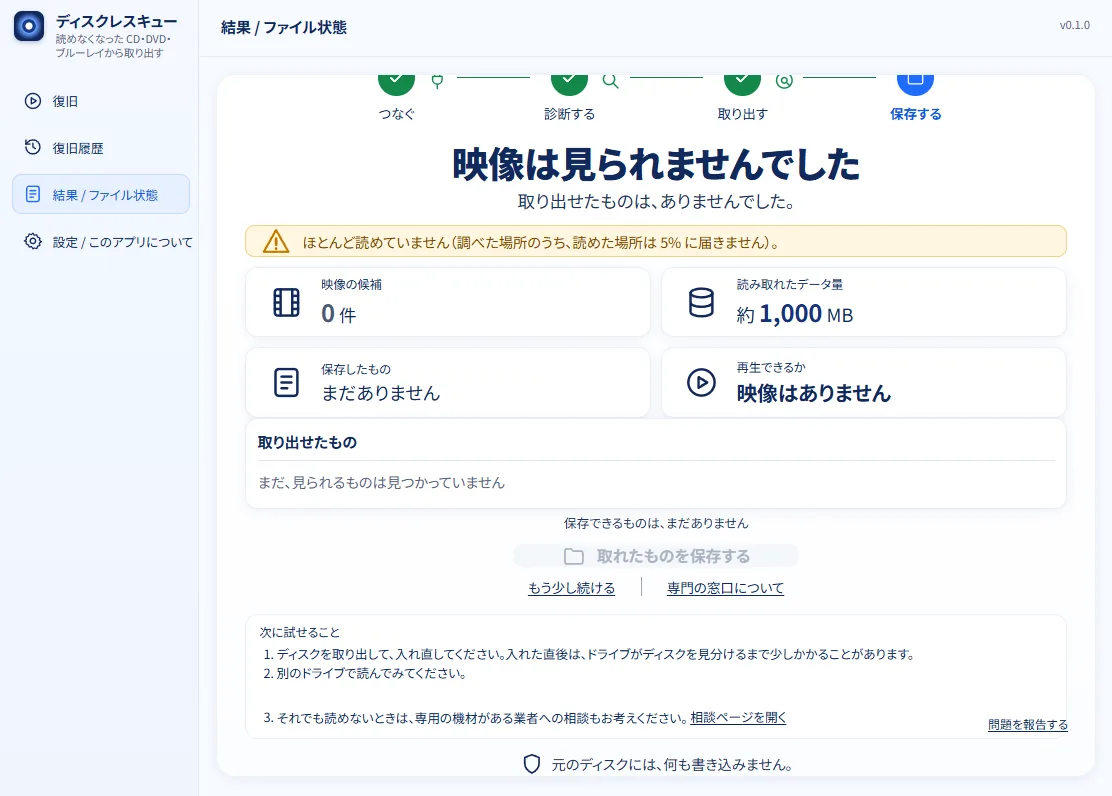
The app never suggests writing to the disc, formatting it or initializing it.
Problem report (optional)
When a disc could not be read, when some unreadable spots remain, or when the app behaves oddly, you can send a problem report. You can send it from the free version too (the free version can send nothing else). Reports are used to find common problems and to fix the software.
- Press the button to report a problem and choose what fits (for example: it stopped partway, a track that should read does not, the screen looks wrong). There is no box for writing text.
- Everything that will be sent is shown on the screen. Check it, then press send. You can also close the screen without sending.
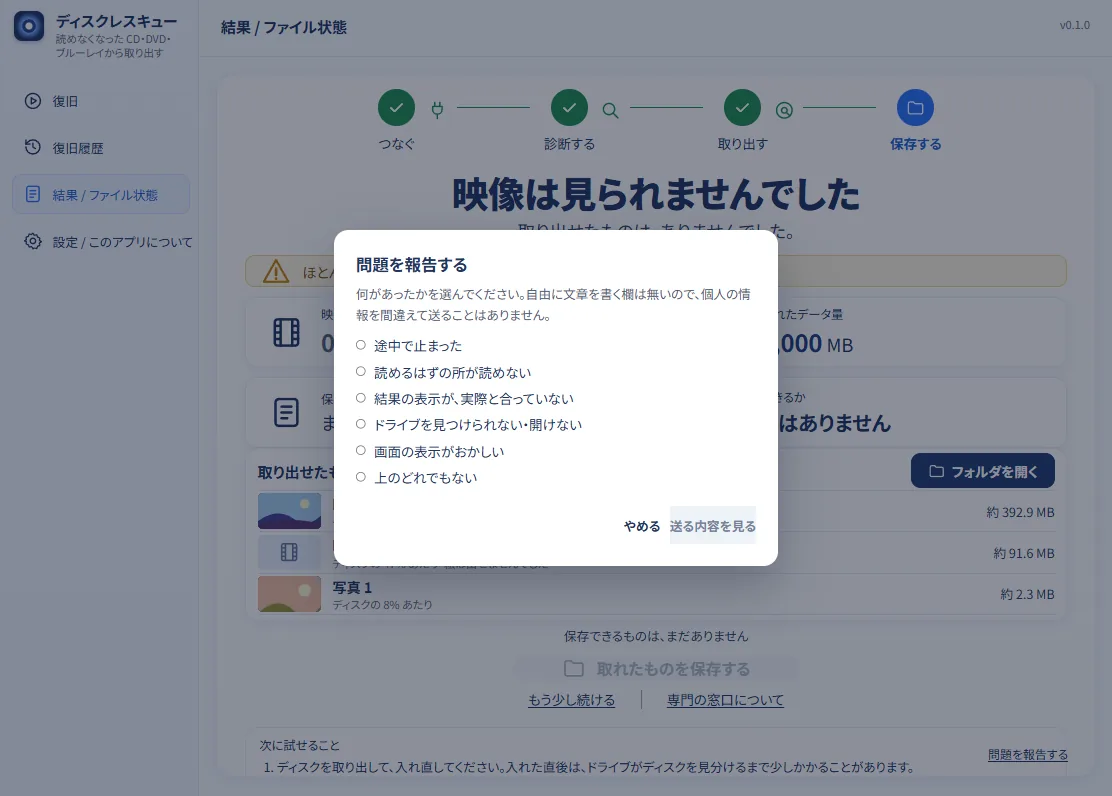
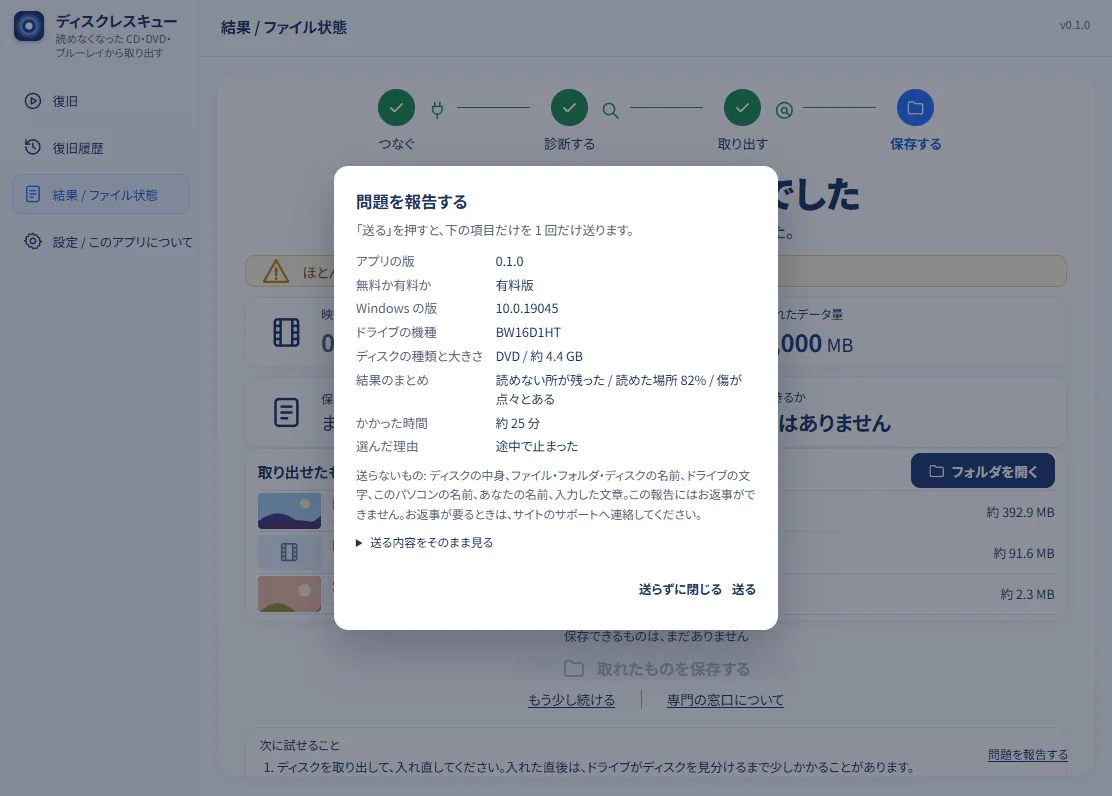
Only these are sent: the app version, the Windows version, the drive model (only models on our list), the disc type and capacity, a summary of the result, the time taken and the reason you chose. The contents of the disc, file names, your name and the like are not sent. Received reports are deleted after 90 days. For details, see the Privacy Policy. If you need a reply, please send us an e-mail.
Next pages
Language of the app: the screens of Disc Rescue are available in Japanese and English only. Pages of this site that are not translated yet are in Japanese.